Almost 2 years ago, I wrote a post on finding 4Kn supported SSDs, but 4Kn was mostly only documented for Linux, and I didn’t know how to enable it from within Windows. But as I’d like to make 4Kn more known, I thought I’d find out how to enable it using Windows too. If you’re concerned about stability, 4Kn has been supported since Windows Vista SP1 (although only bootable since Windows 8), and my brother had been running Windows 11 with 4Kn on a WD SN850X for about a year now, and hasn’t had any issues.
This guide also works in the Windows Preinstallation Environment (WinPE) or Recovery Environment (WinRE), which is useful if you want to set up 4Kn before installing Windows. This guide will also work for Linux, since openSeaChest is cross platform. However, there are better ways to check and format on Linux, which I covered in my previous post.
Why?
NAND flash memory is manufactured with 4096 byte pages, but most consumer drives emulate 512 byte sectors for compatibility with older operating systems. Modern file systems also default to 4096 byte cluster sizes, so there ends up being a conversion between 4096 byte blocks, to 8x 512 byte transfers, and back to 4096 byte pages on the SSD. Enabling 4K native support skips this conversion, hopefully improving performance.
Preparation
You will need to download openSeaChest and extract it somewhere: github.com/Seagate/openSeaChest.
I’m not sure if the normal SeaChest works on non-Seagate drives, but openSeaChest does!
Converting to 4Kn requires erasing the drive, so I recommend doing this before installing your OS, or at least backup your data first! Cloning partitions most likely won’t work, so it’s best to just start fresh.
Checking if your drive supports 4Kn
- Open a command prompt as administrator
- Change directory to where you extracted openSeaChest, e.g.
cd C:\Users\Steve\Downloads\openSeaChest-v25.05.2-win-x64 - Run
openSeaChest_Format.exe -sto list all drives, and note the handle of the drive you want to check (e.g.PD0) - Run
openSeaChest_Format -d PD0 --showSupportedFormats(replacingPD0with your drive’s handle, or use-d allto check all drives instead) -
Look for a 4096 Logical Block Size entry, if it exists, your drive supports 4Kn!
Here’s an example output from my Kingston KC3000:
 ==========================================================================================
  openSeaChest_Format - openSeaChest drive utilities - NVMe Enabled
  Copyright (c) 2014-2025 Seagate Technology LLC and/or its Affiliates, All Rights Reserved
  openSeaChest_Format Version: 3.4.0 X86_64
  Build Date: Jul 30 2025
  Today: 20250930T030142	User: admin
 ==========================================================================================

 \\.\PhysicalDrive0 - KINGSTON SKC3000D2048G - 50026B7687459EF2 - EIFK51.2 - NVMe

 WARNING: Customer unique firmware may have specific requirements that
          restrict sector sizes on some products. It may not be possible to format/
          fast format to common sizes like 4K or 512B due to these customer requirements.


 Supported Logical Block Sizes and Protection Types:
 ---------------------------------------------------
   * - current device format
 PI Key:
   Y - protection type supported at specified block size
   N - protection type not supported at specified block size
   ? - unable to determine support for protection type at specified block size
 Relative performance key:
   N/A - relative performance not available.
   Best
   Better
   Good
   Degraded
 --------------------------------------------------------------------------------
  Logical Block Size  PI-0  PI-1  PI-2  PI-3  Relative Performance  Metadata Size
 --------------------------------------------------------------------------------
 *               512     Y     N     N     N                  Good              0
                4096     Y     N     N     N                Better              0
 --------------------------------------------------------------------------------
Formatting to 4Kn
Note: This will destroy any data currently on the drive!
- Use the same command prompt as before
-
Run
openSeaChest_Format -d PD0 --nvmFormat 4096 --poll --confirm this-will-erase-data(replacingPD0with your drive’s handle)It should take a few seconds to complete, and output
NVM Format was Successful!when done. -
Run
openSeaChest_Format -d PD0 --showSupportedFormatsto verify it was successful, you should see 4096 as the selected Logical Block SizeHere’s an example output from my Kingston KC3000:
========================================================================================== openSeaChest_Format - openSeaChest drive utilities - NVMe Enabled Copyright (c) 2014-2025 Seagate Technology LLC and/or its Affiliates, All Rights Reserved openSeaChest_Format Version: 3.4.0 X86_64 Build Date: Jul 30 2025 Today: 20250930T030700 User: admin ========================================================================================== \\.\PhysicalDrive0 - KINGSTON SKC3000D2048G - 50026B7687459EF2 - EIFK51.2 - NVMe WARNING: Customer unique firmware may have specific requirements that restrict sector sizes on some products. It may not be possible to format/ fast format to common sizes like 4K or 512B due to these customer requirements. Supported Logical Block Sizes and Protection Types: --------------------------------------------------- * - current device format PI Key: Y - protection type supported at specified block size N - protection type not supported at specified block size ? - unable to determine support for protection type at specified block size Relative performance key: N/A - relative performance not available. Best Better Good Degraded -------------------------------------------------------------------------------- Logical Block Size PI-0 PI-1 PI-2 PI-3 Relative Performance Metadata Size -------------------------------------------------------------------------------- 512 Y N N N Good 0 * 4096 Y N N N Better 0 -------------------------------------------------------------------------------- - You can now create a new partition and format it as NTFS (or maybe even ReFS), and you won’t need to do anything special!
Benchmarking
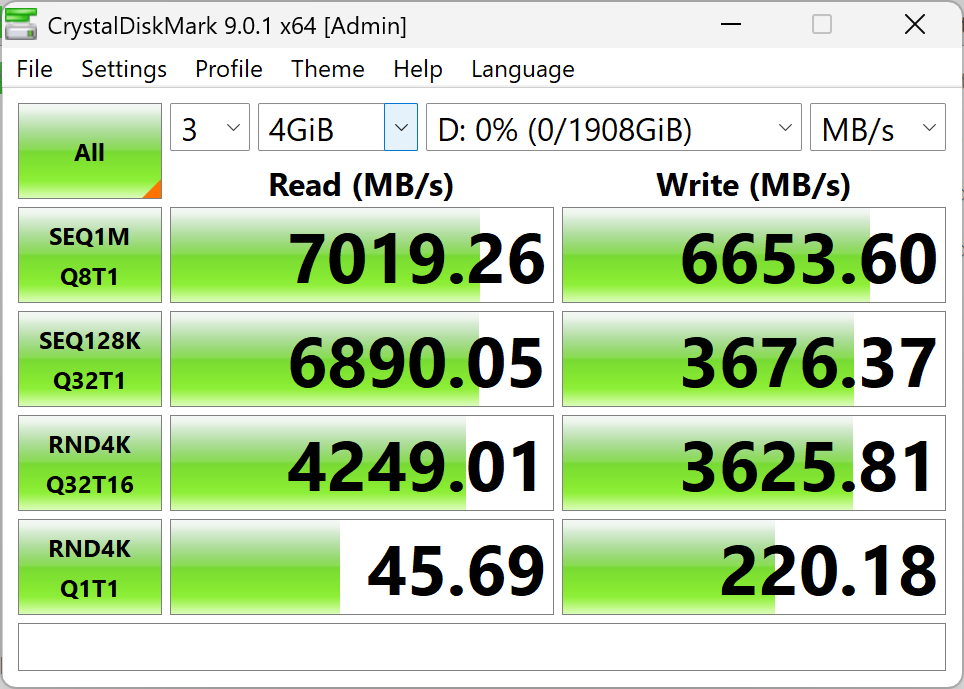
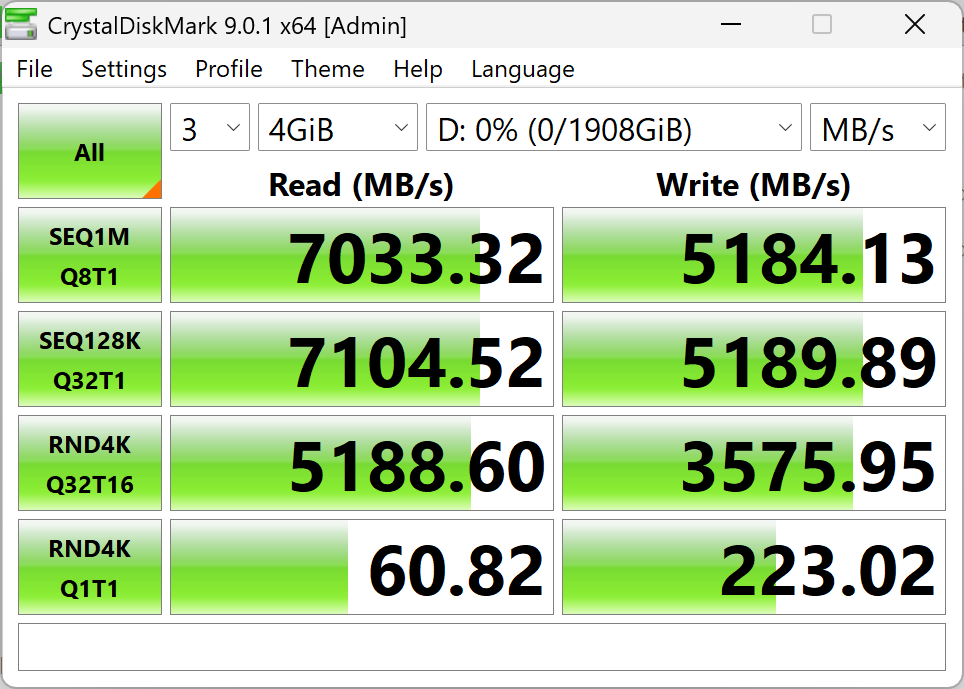
I did a quick before and after benchmark using CrystalDiskMark 9.0.1 x64 on my Kingston KC3000 2TB, formatted as 512e and then 4Kn. I didn’t do any extensive testing, so take these results with a grain of salt.
512e Benchmark
4Kn Benchmark
Thanks for reading!
Steve.
Comments
Reply